 Lirra



1. Export from Goodreads
- Sign in to goodreads.com in a web browser. The export is on the website.
- Open My Books.
- In the left column, under Tools, choose Import and export.
- Click Export Library. For a large library, the file can take a few minutes to be ready.
- Click the link that appears below the button to download the CSV file.
Exporting makes a copy. Nothing is removed from your Goodreads account.
2. Get the file onto your iPhone
If you exported on a computer, send the file to your iPhone with AirDrop, iCloud Drive or an email to yourself, and save it in the Files app. If you exported on your iPhone, it is already in your Downloads folder in Files.
3. Import into Lirra
- In Lirra, on the Home tab, tap the gear to open Settings.
- Under Your books, tap Import from another app, and choose the CSV file.
- Lirra tells you how many books are new and how many are already on your shelf. Tap Import.
Covers appear little by little afterwards, for books with an ISBN. Lirra never duplicates or changes a book that is already on your shelf, so you can import the same file twice without worry.
What comes across
| In Goodreads | In Lirra |
|---|---|
| Shelves read, currently-reading, to-read | Finished, reading, to read |
| A “did-not-finish” shelf | Did not finish |
| Star rating | Your rating |
| Date read, read count | Your readings, with the latest date |
| Review and private notes | Your private notes |
| Owned copies and binding | A copy, in the right format |
| Series in the title, e.g. “(Series, #2)” | The book, in its series |
Other custom shelves do not become tags. Lirra is not affiliated with Goodreads.
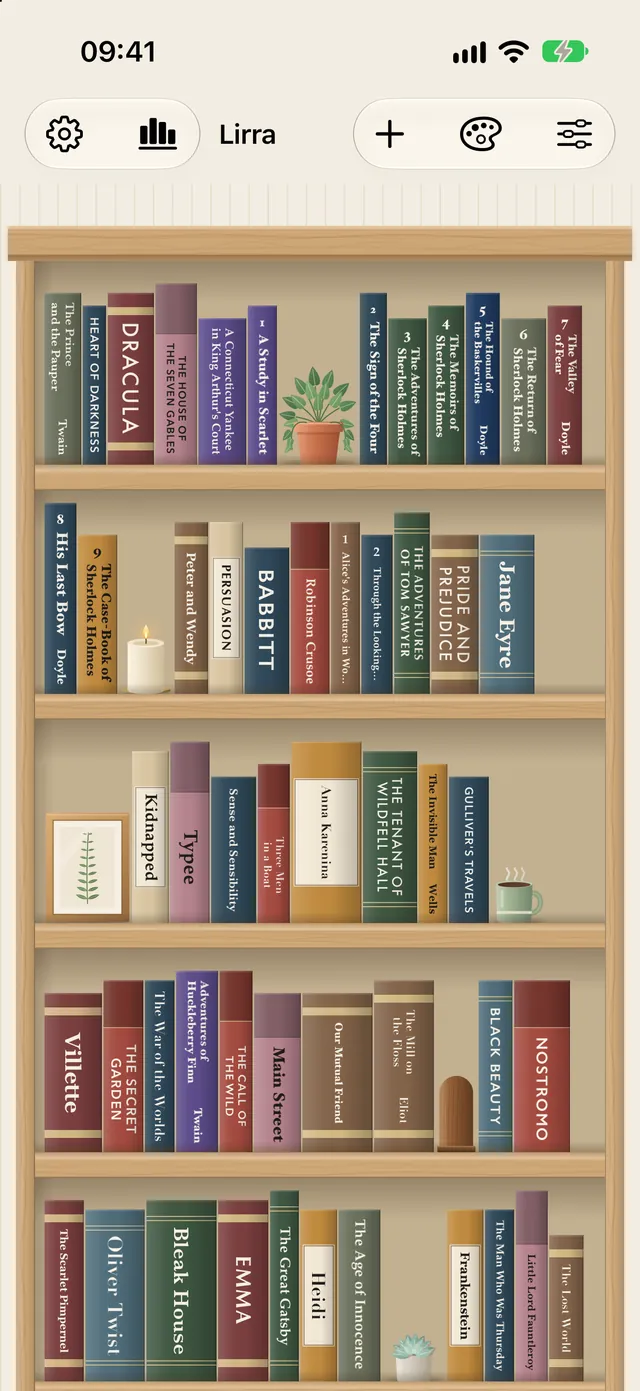
Your books, at home in Lirra
Once imported, every book stands on your shelf with a spine in the colors of its cover. You can export everything back to a CSV file at any time: your books are never locked in.
Questions
Does exporting delete anything from Goodreads?
No. The export is a copy of your library; your account stays as it is.
Can I export from the Goodreads app?
The export is on the Goodreads website. On a phone, open the website in your browser.
Can Lirra also import from StoryGraph or other apps?
Yes. Lirra reads CSV exports from Goodreads, StoryGraph, Bookmory, Libib and BookBuddy, as well as a spreadsheet with a Title and an Author column.
My file was opened in a spreadsheet. Will it still work?
Yes. Lirra also reads files saved again by a spreadsheet, including those that use semicolons.